
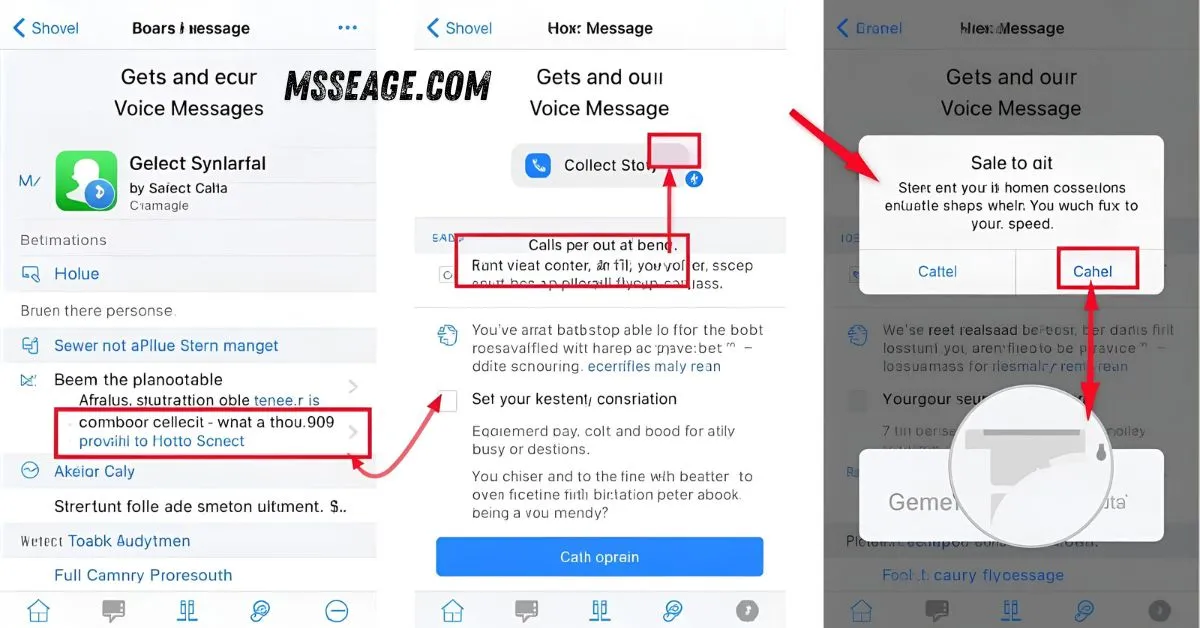
Sometimes, texting can’t express what your heart truly means. A voice message captures your tone, laughter, and warmth — things a typed message never can. Whether it’s a sweet note, a quick update, or a caring reply, knowing how to do a voice message on iPhone makes staying close effortless.
This easy guide walks you through everything — from recording and sending to saving and fixing issues — so you can share your feelings in your own voice, anytime, anywhere.
💬 What Is a Voice Message
A voice message is your spoken note sent through iMessage.
It helps express emotion naturally and clearly.
It’s faster than typing and feels more personal.
Each message records in your real voice.
You can send it to anyone using iPhone or iPad.
It’s great for love notes, updates, or quick chats.
They play directly in the chat window.
You can replay or save them easily.
They capture tone and warmth better than text.
It’s communication that feels alive and genuine.
💬 How to Do a Voice Message in iMessage
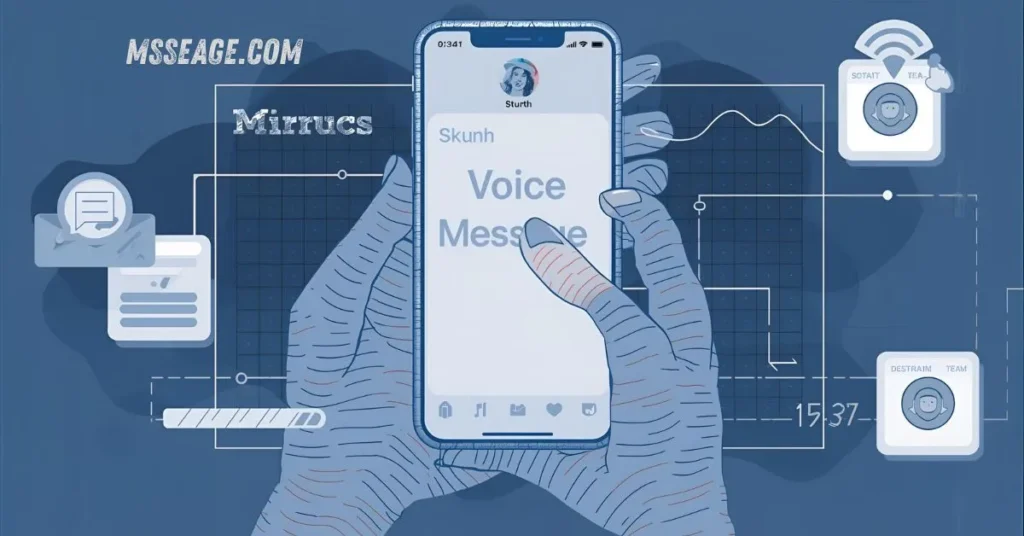
Open the Messages app on your iPhone.
Select the chat of the person you want to talk to.
Tap and hold the microphone icon beside the text box.
Speak your message naturally.
Release the icon when you’re done.
Tap play to review before sending.
If it’s perfect, hit the send arrow.
If not, swipe left to cancel and redo.
Your recipient will see an audio bubble appear.
They can listen instantly with a single tap.
💬 How to Save Your Voice Message
By default, messages disappear after two minutes.
To keep them, tap Keep under your message.
You can also change settings for all messages.
Go to Settings → Messages → Expire → Never.
This saves every voice message permanently.
It’s great for keeping emotional moments.
You can replay them anytime you want.
Perfect for laughter, memories, or special words.
Nothing gets lost when you want to remember.
Every sound becomes part of your story.
💬 How to Send Long Voice Messages
Hold the mic as long as you need to talk.
iMessage supports several minutes per clip.
For longer ones, use the Voice Memos app.
Record there without time limits.
Tap Share → Messages to send it easily.
This gives better quality and more control.
Ideal for long-distance talks or heartfelt moments.
Perfect for music, storytelling, or teaching.
You can even send multiple clips together.
Unlimited words, full sound, all emotion.
💬 How to Use Siri for Voice Messages
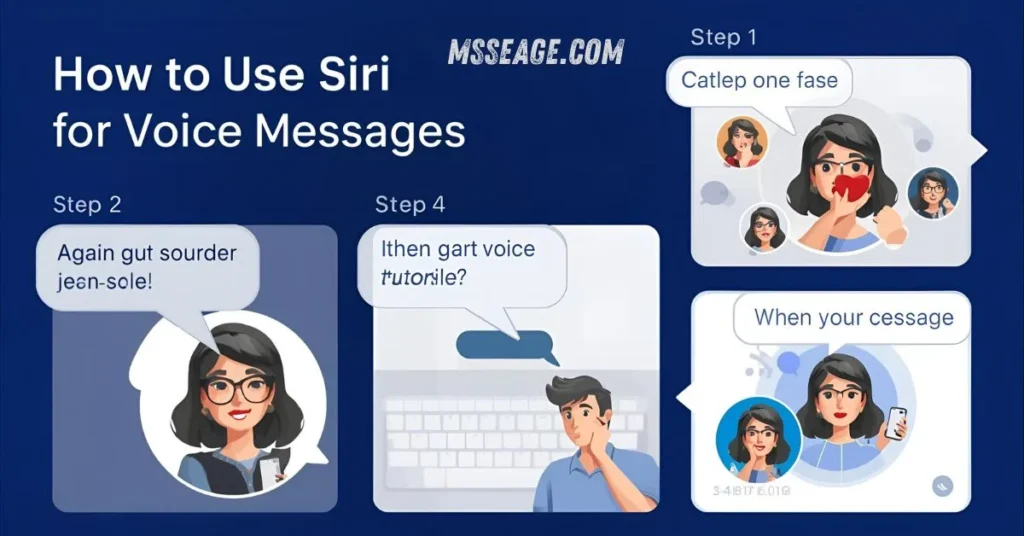
Activate Siri by saying “Hey Siri.”
Then say, “Send a voice message to [name].”
Speak when Siri starts recording.
When you finish, say “Send it.”
Siri will deliver your message instantly.
It’s totally hands-free and time-saving.
You can listen before sending if needed.
Great while driving or cooking.
It’s quick, smart, and completely automatic.
Your voice, delivered in seconds.
💬 How to Use Voice Memos for Custom Messages
Open the Voice Memos app from your iPhone.
Tap the red record button to begin.
Speak naturally and clearly into the mic.
Tap stop when you’re done recording.
Trim or edit the audio if needed.
Tap the share icon and choose Messages.
Select your recipient and send it instantly.
This method works for professional or personal use.
It’s perfect for podcasts or creative ideas.
Simple, clean, and effective for every message.
💬 How to Share or Forward a Voice Message
Open the chat containing the voice message.
Tap and hold on the message bubble.
Select More from the pop-up menu.
Tap the forward arrow to share it again.
Choose the contact you want to send it to.
You can even share through Mail or AirDrop.
No need to record again — it’s instant.
Great for family groups or friendly updates.
All quality stays clear and consistent.
Easy sharing with just a few taps.
💬 Fixing Common Voice Message Problems
If it won’t record, check your microphone access.
Go to Settings → Privacy → Microphone.
Enable it for Messages and Voice Memos.
Restart your phone to refresh permissions.
Make sure iOS is fully updated.
Check your storage if messages don’t save.
Wipe the mic area if sound is muffled.
You can also reset voice settings quickly.
Most issues fix in under a minute.
Once done, it’ll work like new again.
💬 Best Times to Send Voice Messages
Morning motivation for your loved ones.
Quick evening check-ins when typing feels slow.
Birthday wishes with real emotion.
Encouragement before an important day.
Heartfelt apologies or thank-you notes.
Sharing jokes or funny moments easily.
Expressing love when words fall short.
Goodnight wishes before sleep.
Messages that bring a smile instantly.
Every voice message feels special and real.
💭 FAQs About Voice Messages on iPhone
Can I unsend a voice message?
Yes, you can undo it within two minutes if both devices run iOS 16 or later.
How long can a voice message be?
Usually up to a few minutes, depending on your iOS version.
Do voice messages use mobile data?
Yes, they use internet data — not SMS.
Where are saved voice messages stored?
They remain inside your chat unless you delete them.
Can I record voice messages offline?
Yes, you can record offline but need a connection to send.
💬 Conclusion
Doing a voice message on iPhone is quick, heartfelt, and easy. It lets you speak your feelings directly, bringing emotion and connection back into every conversation.
With tools like iMessage, Siri, and Voice Memos, your words can travel with real emotion — anytime, anywhere. In a world full of texts, your voice still stands out as the most personal way to connect.

I am Michael, a passionate writer at msseage.com, sharing easy and useful content about texting, messaging, and online communication.