
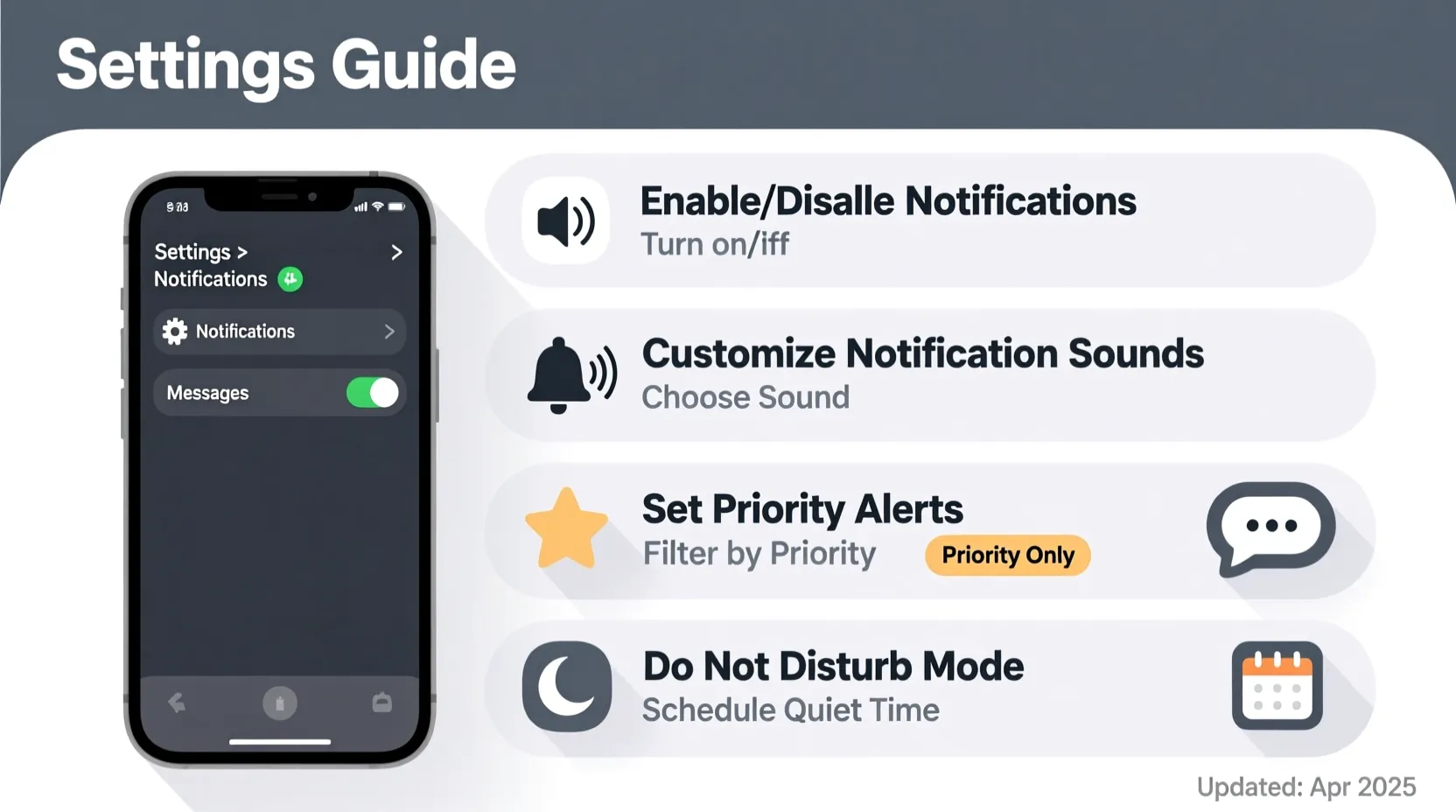
When your phone does not alert you for new messages, it feels like you are cut off from everyone. You only see texts when you open the app, and by then, you might have already missed something important. If you keep wondering what is wrong with your text message notification, the good news is that it is usually just one or two simple settings causing the problem.
This guide explains what a text message notification is, why it might stop working or behave strangely, and how you can fix it step by step so you see, hear, and feel every important message again.
💬 What Is A Text Message Notification
A text message notification is the alert your phone gives you when a new SMS or message arrives.
It can be a sound, a vibration, a banner at the top, or a lock screen alert.
You might also see a small badge on the messaging app icon.
These notifications are controlled by both your phone’s system and your messaging app.
They help you notice new texts without opening the app every time.
You can decide how much detail shows in each notification.
Some people like full message previews, others prefer only icons.
You can choose sound, vibration, or silent visuals only.
Every part of this can be customized in settings.
Understanding that control is the first step to fixing problems.
💬 System Settings For Text Message Notification
Your main text message notification starts in system notification settings.
Open your phone’s Settings and go to Notifications.
Find your default messaging app in the app list.
Make sure notifications are allowed for that app.
Turn on alerts for lock screen, banners, and status bar icons if you want them.
Check if there are channels like new messages or group messages.
Enable the ones that matter most to you.
If previews are off, you may see alerts but not text content.
Send yourself a test message after changing these settings.
When system notifications are correct, most basic issues are solved.
💬 App-Level Notification Controls
Your messaging app usually has its own text message notification settings.
Open the app and go into its settings or options menu.
Look for a section labeled notifications or alerts.
There you can pick the notification tone for messages.
You can turn vibration on or off for new texts.
Some apps let you set different sounds for different chats.
You might also control badges, previews, and in-app banners.
If notifications are disabled inside the app, the system alone cannot fix it.
Make sure both the app and system settings allow notifications.
When both sides match, your alerts will be more reliable.
💬 Muted Chats, Groups, And Contacts
Sometimes only one person or one group seems silent.
In many messaging apps, you can mute specific conversations.
Muted threads usually show a small crossed-out bell icon.
Open your messaging app and look closely at your chat list.
Tap on any conversation that feels too quiet.
Open its chat settings or info page.
Check if notifications are muted or turned off there.
Unmute the chat or enable alerts again if needed.
You can choose to keep busy group chats muted and close contacts unmuted.
This balance keeps your text message notification useful, not overwhelming.
💬 Do Not Disturb And Focus Modes
Do Not Disturb can silently block your text message notification.
You might have turned it on for a meeting or night and forgotten about it.
Look for a small moon, minus sign, or focus icon in your status bar.
Open Settings and go to Sound, Focus, or Do Not Disturb.
Check if Do Not Disturb is turned on.
Turn it off to restore normal alerts.
If you like using it, review the DND rules instead of turning everything off.
Allow messages or favorite contacts through during that mode if you want.
You can also adjust schedules so DND turns off automatically.
Once it is set correctly, you get peace and important message alerts together.
💬 Sound, Vibration, And Volume Issues
Sometimes notifications are working, but you just cannot hear them.
Open your phone’s sound or volume settings.
Check the notification volume slider and raise it if it is too low.
Make sure your phone is not in full silent mode.
Choose a loud and clear notification tone in your messaging app.
Turn on vibration if you often miss sound-only alerts.
If you use earbuds or a smartwatch, alerts might be sending there instead of the phone speaker.
Disconnect them and test again with a new text.
Try a few different tones to find one that stands out.
Small sound tweaks can make a big difference in catching messages.
💬 Lock Screen, Banners, And Icon Badges
You may be getting notifications, but not seeing them where you expect.
Go to your lock screen and notification style settings.
Choose whether notifications show on the lock screen.
If everything is hidden, you will not see text alerts until you unlock.
Turn on banners or heads-up pop-ups so notifications appear while you use other apps.
Enable status bar icons so you see a symbol when new texts arrive.
Turn on app icon badges if you like seeing unread counts.
Adjust preview options if you want more or less message text shown.
These settings decide how visible a text message notification is.
With the right setup, you notice messages quickly without exposing too much detail.
💬 Battery Saver And Background Limits
Battery saver features can delay or block text message notification alerts.
Open your battery or power management settings.
Check if battery saver or power saving mode is turned on.
If it is, try turning it off and see if notifications improve.
Find your messaging app in battery optimization or background limits.
Allow the app to run in the background without strict limits.
If the app cannot run freely, it may not notify you on time.
This is common when phones try to stretch battery life aggressively.
Give your messaging app a little more freedom in power settings.
A few extra percent of battery is worth getting important alerts.
💬 App Glitches, Updates, And Restarts
Sometimes the text message notification breaks due to a small glitch.
Messages may still arrive, but alerts do not show correctly.
Close your messaging app completely and reopen it.
Clear the app cache from your phone’s app settings.
Check for updates to the messaging app in your app store.
Install any available updates, as they often fix notification bugs.
Restart your phone after updates or cache clears.
A restart refreshes system services and background processes.
Send yourself a test message to see if the notification appears.
Often, this simple clean-up is enough to restore normal behavior.
💭 FAQs About Text Message Notification
Why am I not getting any text message notification
Notifications might be turned off in system settings, app settings, or blocked by Do Not Disturb or battery saver.
Why do I only miss alerts from one person or group
That chat may be muted or have its own notifications turned off inside the app.
Why do I see the message only after opening the app
Lock screen or banner alerts may be disabled, or the app may be restricted in the background.
Why is there no sound but I see notifications
Your notification volume may be turned down, or the tone is set to silent.
Can restarting the phone fix text message notification issues
Yes, a restart often clears temporary glitches that block or delay alerts.
✅ Conclusion
A broken or missing text message notification feels like your phone has gone quiet on you, but the cause is usually simple. From system settings and app controls to mute options, sound levels, Do Not Disturb, battery saver, and small app glitches, each piece plays a role in how your alerts behave.
By checking these areas one by one and testing with a new message after changes, you can rebuild your notification system the way you want it.
Once everything is set, your phone will alert you clearly and reliably whenever a new text arrives, so you stay connected and never miss an important message again.

Emily is a professional content writer at msseage.com, specializing in messaging guides, tech tips, and user-friendly digital communication content