
We’ve all been there — that sinking feeling when you realize you’ve deleted an important message. Maybe it was a sweet text, a business detail, or a memory you didn’t mean to lose. The good news? You can retrieve deleted text messages on your iPhone in several safe and simple ways.
This guide walks you through every method, from iCloud recovery to backup tools, so you can bring back what matters most — your memories, your conversations, and your peace of mind.
💬 Understanding How Message Deletion Works
When you delete a message, it doesn’t vanish instantly.
Your iPhone marks it for removal but keeps it hidden.
That’s why recovery is often possible for a short time.
Messages may still live in iCloud or iTunes backups.
Some apps and carriers also keep data copies.
The key is acting fast before it’s overwritten.
Deleting only hides it from the chat view.
If you restore a backup, it can reappear easily.
Your iPhone quietly protects your older data.
That’s what makes recovery surprisingly possible.
💬 Retrieve Deleted Messages from Recently Deleted Folder
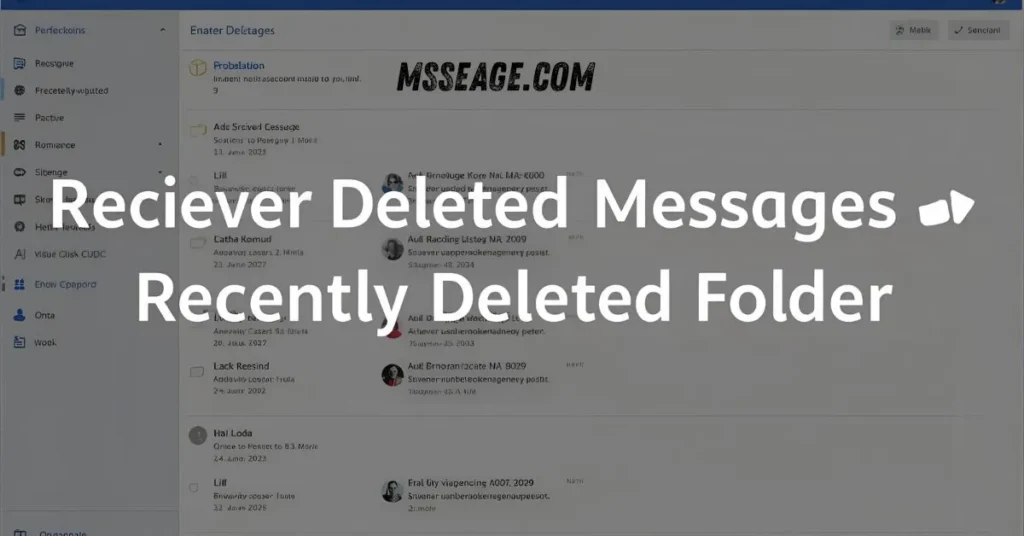
Go to Messages and open Recently Deleted.
You’ll see texts that were removed in the last 30 days.
Tap the conversation you want to recover.
Select Recover and confirm your action.
The message will return to your main inbox.
This is the fastest and safest method.
It works automatically in new iOS versions.
No backup or tool needed — just your phone.
Perfect for quick accidental deletions.
Simple, instant, and 100% secure.
💬 Recover Deleted Messages from iCloud Backup
Go to Settings → Your Name → iCloud → Manage Storage.
Check if Messages is toggled on for backup.
If yes, restore your phone using that backup.
Go to Settings → General → Transfer or Reset iPhone → Erase All Content.
Then select Restore from iCloud Backup.
Sign in and choose the latest version before deletion.
The deleted messages should reappear after setup.
It’s a full-device restore but brings back everything.
Best for when you’ve lost multiple chats.
Your data feels like it was never gone.
💬 Retrieve Messages from iTunes or Finder Backup
Connect your iPhone to your computer.
Open iTunes (or Finder on macOS).
Select your device from the sidebar.
Click Restore Backup.
Choose the backup that was made before deletion.
Wait for the restore process to finish.
Your deleted texts will reappear automatically.
This method restores all old data safely.
It’s reliable, especially for older iPhones.
Perfect for recovering long conversations.
💬 Use iCloud Message Sync to Restore
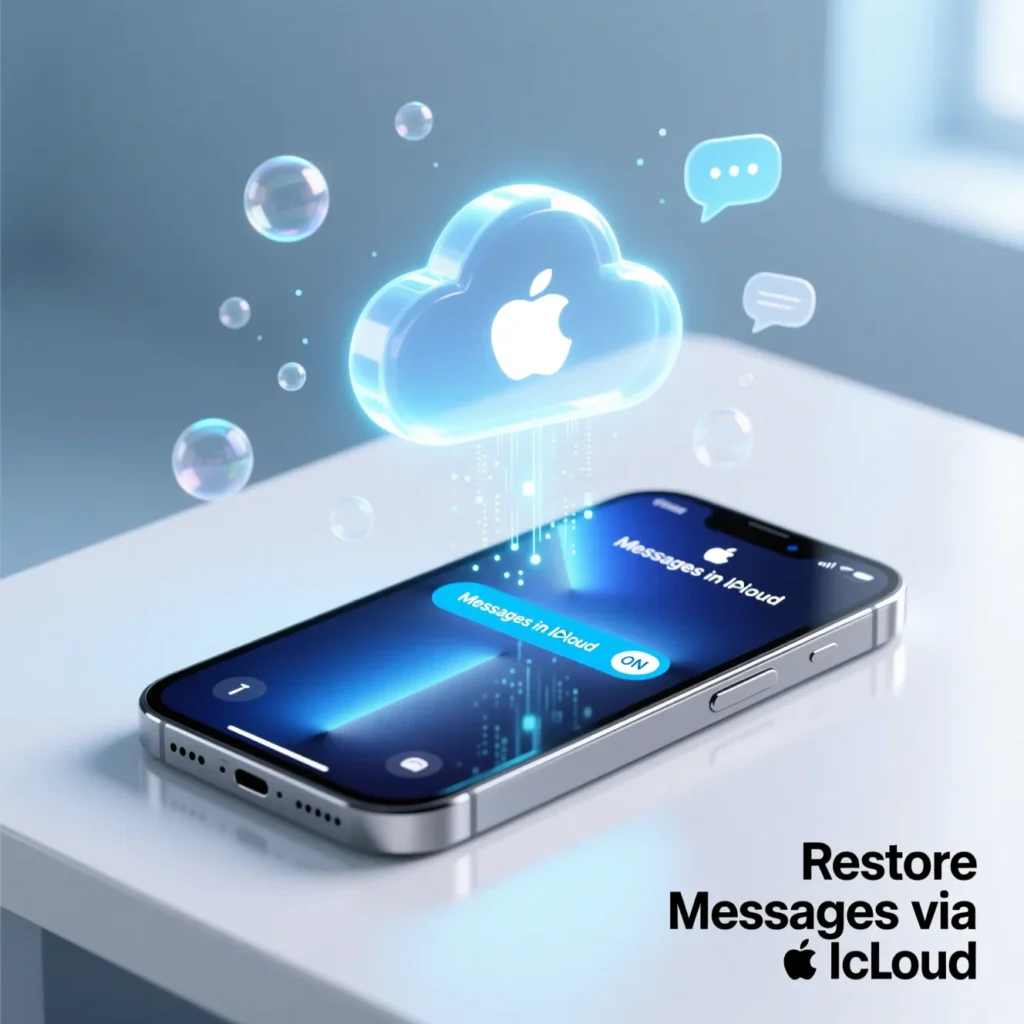
Go to Settings → Messages → iCloud Messages.
Toggle it off, wait a few seconds, then turn it back on.
Your device will resync messages from iCloud.
This refresh may restore missing messages instantly.
It works without deleting or resetting anything.
All data syncs seamlessly in the background.
Make sure you’re connected to Wi-Fi.
Keep iCloud storage space available.
Ideal for quick message refresh or sync errors.
It’s the easiest fix for iMessage recovery.
💬 Ask Your Carrier for Message Records
Some carriers keep records for a short period.
Contact your service provider’s customer support.
Ask if they can retrieve text logs or message content.
They may require account verification for security.
This only works for SMS, not iMessage.
Some carriers allow online access through apps.
You can download copies of your recent texts.
Useful for business or legal communication recovery.
Policies vary by provider, so always check.
It’s a practical solution when no backup exists.
💬 Use Third-Party Recovery Tools
Apps like iMobie PhoneRescue, Dr.Fone, or iMyFone D-Back help retrieve texts.
They scan your iPhone or backups for deleted data.
You can preview and select what to restore.
Works for texts, attachments, and even WhatsApp.
Make sure to use trusted, reputable software.
Follow on-screen steps carefully for safe recovery.
These tools often recover from partial backups.
They don’t require full phone resets.
Best for quick, deep-level recovery attempts.
A good choice when you’re out of other options.
💬 How to Prevent Future Message Loss
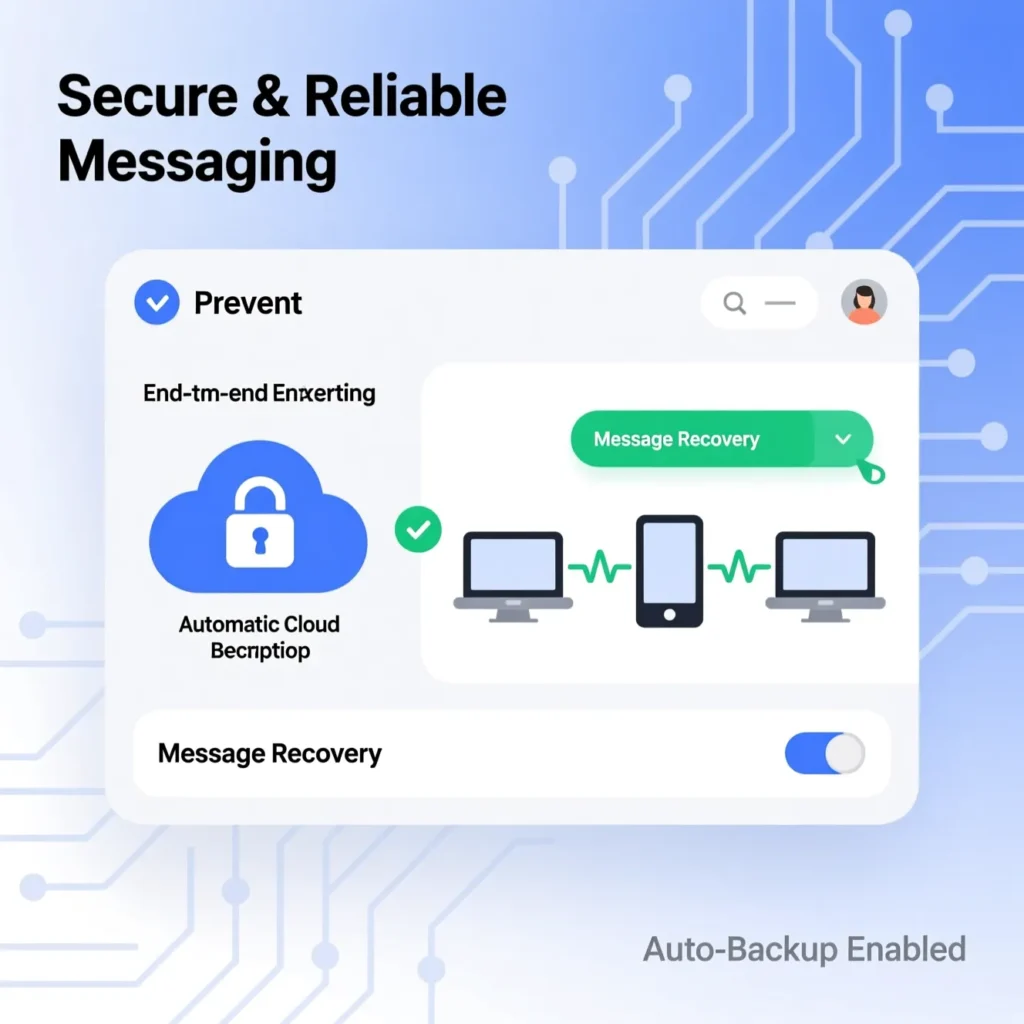
Turn on iCloud Messages sync to store all texts safely.
Regularly back up your iPhone automatically.
Use both iCloud and iTunes for double safety.
Avoid deleting entire chats in a hurry.
Keep your iPhone updated for new safety features.
Enable message downloads over Wi-Fi only.
Use recovery-friendly apps that support backups.
Archive important conversations monthly.
Always check before confirming “Delete.”
Backing up once can save years of memories.
💬 Signs That Recovery Might Still Work

Your deleted message was recent (under 30 days).
You backed up your iPhone recently.
You use iCloud sync for Messages.
You haven’t stored large files after deletion.
You still see chat previews in notifications.
You notice unusual space usage in storage.
A restore option appears in Recently Deleted.
You can find partial content in iTunes backups.
Old attachments still exist in Photos or Files.
These clues mean recovery is likely possible.
💭 FAQs About Retrieving Deleted Text Messages
Can I recover messages without backup?
Yes, using the Recently Deleted folder or third-party tools.
Are deleted texts gone forever after 30 days?
Usually yes, unless you had a backup made before.
Can I recover only one message instead of a full chat?
Yes, select the specific thread in Recently Deleted.
Does iCloud automatically back up texts?
Only if iCloud Messages is enabled in your settings.
Will restoring from backup delete new data?
Yes, it reverts your phone to the backup date.
💬 Conclusion
Losing a message doesn’t always mean it’s gone forever. With iCloud, iTunes, and new iOS tools, retrieving deleted text messages has never been easier. Whether it’s a cherished memory or an important detail, there’s almost always a way to bring it back.
Keep regular backups, stay calm, and act quickly — your deleted texts may just be waiting to return. The next time a message disappears, you’ll know exactly what to do.

I am William, an SEO-focused content creator at msseage.com, writing informative guides on messages, apps, and digital communication.