
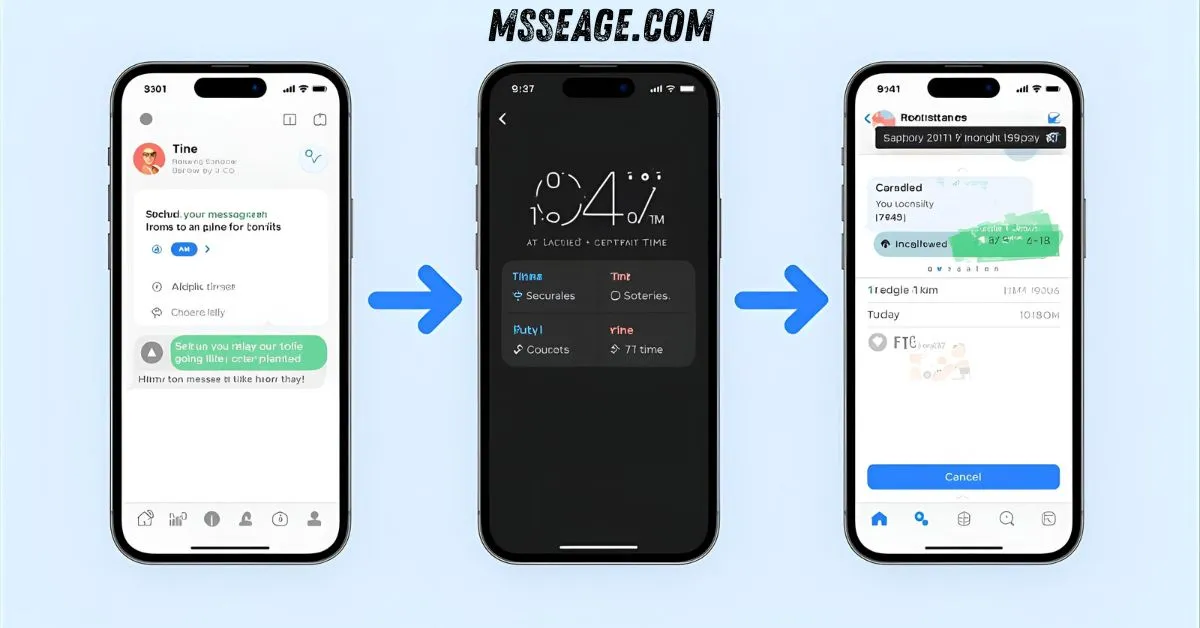
Sometimes you want to send a text at the perfect moment — a birthday wish at midnight, a reminder for a meeting, or a sweet good-morning note when you’re still asleep. Learning how to send a message at a certain time on iPhone makes all of that effortless.
Even though Apple doesn’t have a built-in “send later” button in iMessage, the Shortcuts app makes it possible to schedule texts that send automatically.
Whether you want to plan a heartfelt message, a business reminder, or a friendly note, your iPhone can do it for you — all hands-free.
💬 What Does It Mean to Send a Message at a Certain Time
It means your message goes out automatically when you want it to.
You choose the time, date, and recipient.
It’s great for special events, birthdays, or reminders.
Perfect for sending love when you’re busy or asleep.
Works for both iMessages and regular SMS texts.
You can set it up once and let it run on its own.
It’s part of iPhone’s automation magic.
No third-party app required for basic use.
It’s the easiest way to never forget a text again.
A thoughtful way to show care and consistency.
💬 How to Schedule a Message Using Shortcuts
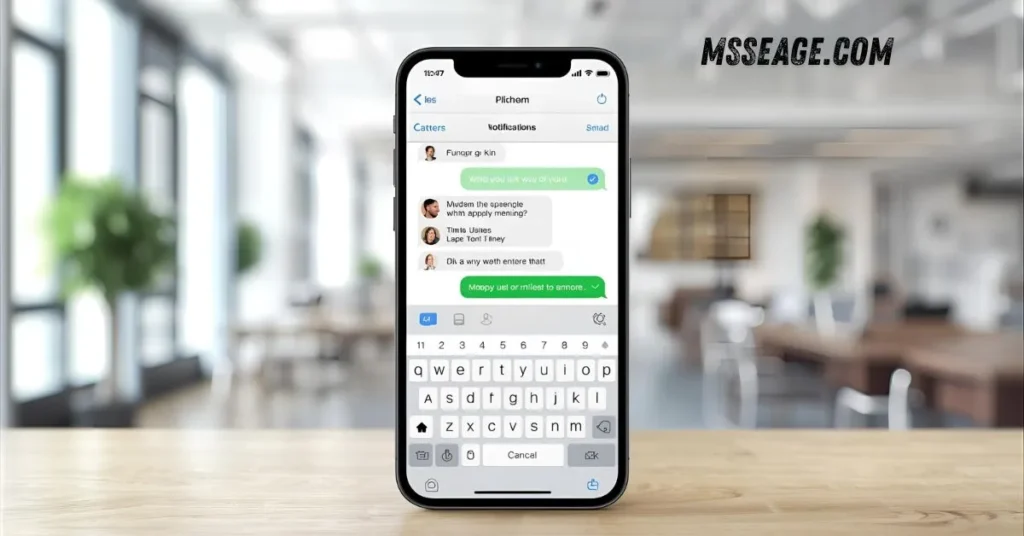
Open the Shortcuts app on your iPhone.
Tap Automation and choose Create Personal Automation.
Select Time of Day and pick the exact time to send.
Tap Add Action and choose Send Message.
Enter your text and select your contact.
Turn off Ask Before Running for automatic sending.
Tap Done to save your automation.
Your message will send right on time.
You can create multiple automations for different times.
This is Apple’s built-in way to schedule messages.
💬 Using Reminders to Help You Send Messages
If you don’t want full automation, use Reminders.
Create a reminder with your message text.
Set the alert for the time you want to send.
When the notification appears, copy and send your text.
It keeps you in control before sending.
Perfect if your message is personal or emotional.
You can even say, “Hey Siri, remind me to text Mom at 9.”
It’s simple, quick, and built right into iOS.
A manual but reliable way to time your texts.
Best for users who like to double-check before sending.
💬 Best Apps to Send Messages Later
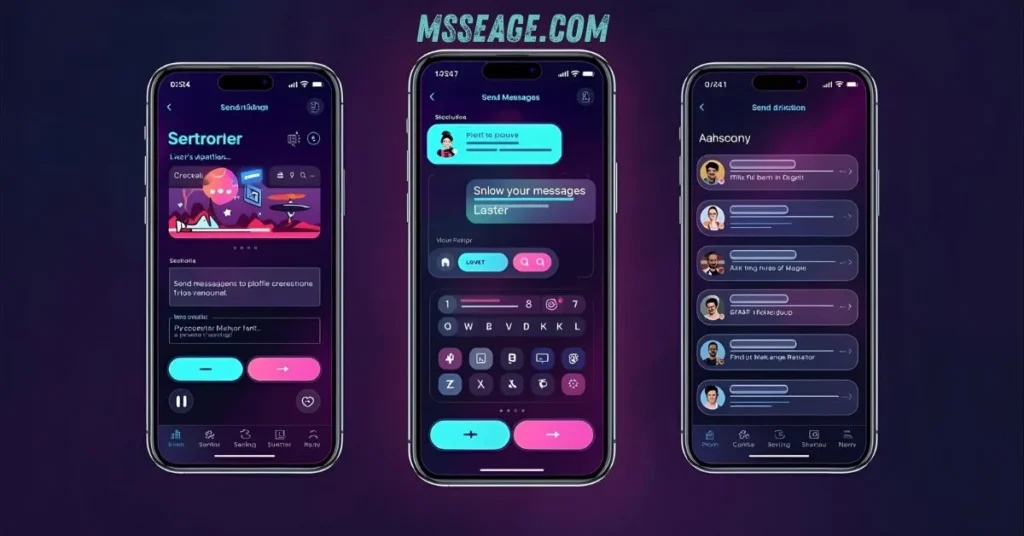
You can also use third-party apps for automatic scheduling.
Apps like Scheduled, AutoSender, and Moxy Messenger are popular.
They let you plan, preview, and manage multiple messages.
Perfect for business reminders or regular communication.
Some support recurring messages and media attachments.
You can schedule iMessages, SMS, and even WhatsApp messages.
Most apps work with your contacts directly.
Some features require a subscription or one-time fee.
Always read app permissions before use.
Ideal for people who want full scheduling control.
💬 Can You Schedule Messages Without Shortcuts
Not directly through the Messages app yet.
Apple hasn’t added a built-in “schedule” option.
But the Shortcuts method works perfectly for now.
It’s safe, private, and completely free.
Apple may add the feature in future iOS updates.
Until then, automation does the job just fine.
You can even edit or pause automations anytime.
It’s the closest thing to built-in message scheduling.
You get flexibility without needing other apps.
An easy trick every iPhone user should know.
💬 Why Scheduled Messages Are Useful
They help you stay thoughtful without forgetting.
You can send messages even when you’re busy.
Perfect for managing time across work and personal life.
Helps maintain connections and important dates.
Eliminates the stress of remembering small details.
Makes communication more consistent and kind.
Especially useful for long-distance relationships.
Perfect for surprise messages or gentle reminders.
Gives your words better timing and impact.
It’s a smart way to show care and reliability.
💬 How to Edit or Cancel a Scheduled Message
Open Shortcuts and go to the Automations tab.
Tap the one you want to edit or delete.
You can change time, contact, or message content.
To cancel, toggle off Enable This Automation.
Deleting it removes the schedule completely.
You can also duplicate automations for future use.
All changes take effect instantly.
No need to recreate from scratch.
Gives you full flexibility over message timing.
Simple control with just a few taps.
💬 Tips for Perfect Message Timing
Test your automation before relying on it.
Keep your phone on and connected to Wi-Fi.
Set reminders for time-sensitive messages.
Use clear, kind, and personal wording.
Avoid scheduling sensitive or emotional texts.
Check your time zone before setting times.
Turn off Ask Before Running for full automation.
Use Shortcuts naming to stay organized.
Be creative — automate thoughtful habits.
Let your iPhone handle the timing while you live freely.
💭 FAQs About Sending Messages at a Certain Time on iPhone
Can I schedule iMessages directly?
No, you must use the Shortcuts app for now.
Will the message send if my iPhone is off?
No, it needs to be turned on and connected.
Can I schedule messages to multiple people?
Yes, add multiple recipients in your automation.
Do scheduled messages show any delay or tag?
No, they look just like regular messages.
Can I repeat the same message daily or weekly?
Yes, Shortcuts allows recurring automations.
💬 Conclusion
Learning how to send a message at a certain time on iPhone makes communication effortless and intentional. Whether it’s a sweet note, a reminder, or a professional text — timing can make all the difference.
With Apple’s Shortcuts app or third-party tools, you can stay connected without being online 24/7. Let your iPhone do the work while you focus on what matters most — creating moments that always arrive right on time.

My name is Emma, a writer at msseage.com, sharing clear and helpful content about messages and digital communication.