
You hit send and instantly regret it. Maybe it went to the wrong person, or maybe it just wasn’t what you wanted to say. Your mind races with one question — if I delete a message on iPhone, does it unsend?
If you’ve ever felt that panic, you’re not alone. Many iPhone users wonder if deleting a message can make it vanish from the other person’s phone too.
This guide will walk you through what really happens when you delete a message, how the unsend feature works, and what you can do to manage your messages better.
📱 What Happens When You Delete a Message on iPhone
When you delete a message on your iPhone, it only disappears from your own device.
The message stays visible on the recipient’s phone.
Deleting it doesn’t remove it from their end.
It simply clears your copy from your chat history.
This applies to both iMessage and regular text messages.
So if you delete it, they can still see it unless they delete it too.
Your deletion is personal, not shared.
Think of it as cleaning your side of the conversation.
It helps organize your messages but doesn’t affect the other person’s view.
The only way to truly remove it from both sides is to use the unsend option.
⏪ The Unsend Feature in iMessage
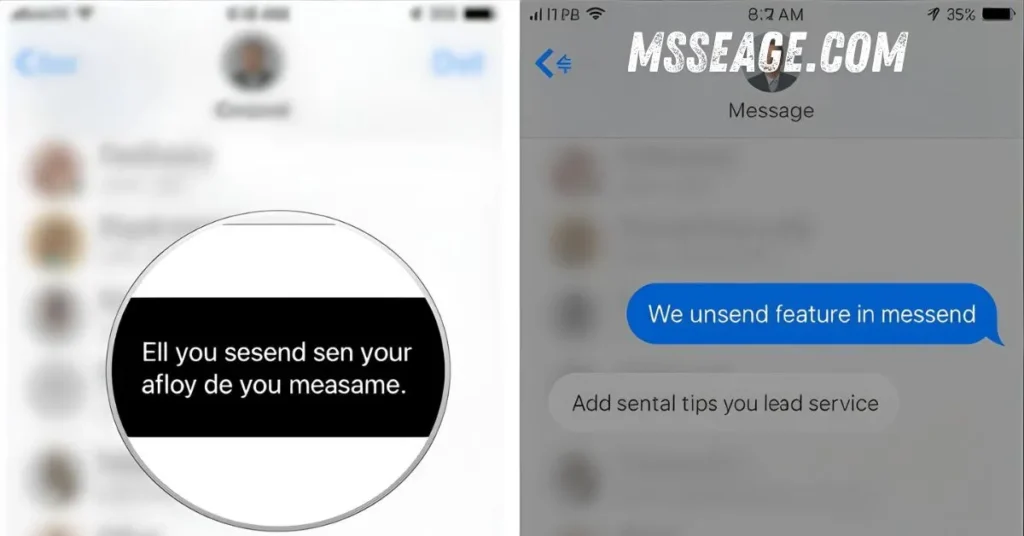
Apple introduced an unsend option for iMessage in iOS 16 and later.
It lets you retract a message within two minutes of sending it.
Once unsent, it disappears from both your phone and theirs.
They’ll see a note saying that a message was unsent.
This only works if both of you are using iMessage (blue bubbles).
It doesn’t work for SMS (green bubbles).
If the recipient’s device is on an older iOS version, they’ll still see the original message.
Unsend is perfect for fixing typos or accidental texts.
After the two-minute window, the message stays permanent.
So timing matters when using the unsend feature.
📤 How to Unsend a Message on iPhone
Open the Messages app and find the chat.
Tap and hold the message you want to remove.
Select Undo Send from the menu.
The message disappears instantly.
You’ll see a small note confirming it was unsent.
The receiver will also see that a message was unsent.
If they’ve already read it, unsending won’t erase the memory — only the text.
It works best for quick mistakes, not long conversations.
Remember, it only applies to iMessages, not regular SMS.
Once the time passes, deletion is local only.
🕐 What If You Delete Instead of Unsend
Deleting just hides the message on your phone.
The recipient still has the original message.
It won’t notify them that you deleted it.
It doesn’t cancel the message delivery.
They can still read, reply, or save it.
You can’t undo the send after deletion.
Deleting is useful for privacy on your side only.
It helps keep your messages organized.
But it doesn’t retract what’s already been sent.
Think of it as hiding, not erasing.
🚫 Limitations of Unsend
You can only unsend within two minutes of sending.
Both users must be on iOS 16 or later.
If one person uses Android, it won’t work.
Older iPhones will still display the message.
It doesn’t erase screenshots or backups.
You can’t unsend multiple messages at once.
There’s no unsend option for SMS.
The system only removes the text, not the notification they already saw.
If they’ve read it, they’ll know what it was.
Unsend is helpful, but not a perfect fix.
🔐 What About Privacy
Deleting a message only removes it from your device.
It doesn’t notify or affect the recipient.
Unsend removes it from both ends, but they’ll know it happened.
Apple includes a small note saying a message was unsent.
This ensures transparency between users.
If you delete an entire chat, it’s gone only for you.
Your data remains safe unless you’ve backed it up to iCloud.
Privacy-wise, deleting helps keep your phone clean and secure.
But it’s not the same as canceling a message.
Only the unsend option can truly retract it.
🧠 Difference Between Delete and Unsend
Delete only clears your side of the chat.
Unsend removes the message from both sides.
Delete can be done anytime.
Unsend works within a short time limit.
Delete is for privacy and space.
Unsend is for mistake correction.
Delete doesn’t alert the other person.
Unsend shows a visible note.
Both are useful, but for different needs.
Knowing when to use each makes all the difference.
🛠️ How to Manage Messages Better

Double-check before pressing send.
Keep your iPhone updated for the latest features.
Use unsend quickly if you make an error.
Delete old chats regularly for privacy.
Turn on Messages in iCloud to back up your data.
Avoid sending sensitive texts you may regret.
Use Do Not Disturb to prevent distractions before sending.
Think before typing during emotional moments.
Use edit message feature for small corrections.
Smart message habits save you from future regret.
🙋 FAQ: If I Delete a Message on iPhone Does It Unsend
Does deleting a message unsend it on iPhone?
No, it only removes the message from your own phone.
Can I unsend an iMessage after deleting it?
Only if you do it within two minutes of sending.
Does the other person know if I delete a message?
No, they don’t get any alert.
Will unsending delete it from their phone too?
Yes, if both are using iMessage on iOS 16 or later.
Can I unsend regular text messages?
No, SMS messages can’t be unsent — only deleted on your end.
🌟 Conclusion
If you delete a message on iPhone, it doesn’t unsend. It only disappears from your screen, not the other person’s. To truly take back a message, you’ll need to use the unsend option within two minutes of sending — and only for iMessages.
Deleting helps with privacy and organization, while unsend helps fix quick mistakes. Understanding the difference saves you stress and gives you control over your conversations.
If you found this helpful, check out our [iMessage tips] and [iPhone message settings guide] for more smart messaging advice. 💛

I am Michael, a passionate writer at msseage.com, sharing easy and useful content about texting, messaging, and online communication.