
When you are busy, on vacation, or simply stepping away from your desk, you still want your email to feel kind and professional. That is where an away message in Outlook helps. Instead of silence, people get a clear and polite reply that explains why you are not answering right away.
If you are searching for how to set an away message in Outlook, you are likely feeling rushed or overwhelmed and want a simple, human guide. This article walks you through easy steps, gives you ideas for what to write, and helps you avoid common mistakes. You do not need to be a tech expert. You just need a calm, clear message and a few clicks in Outlook.
Why you should set an away message in Outlook
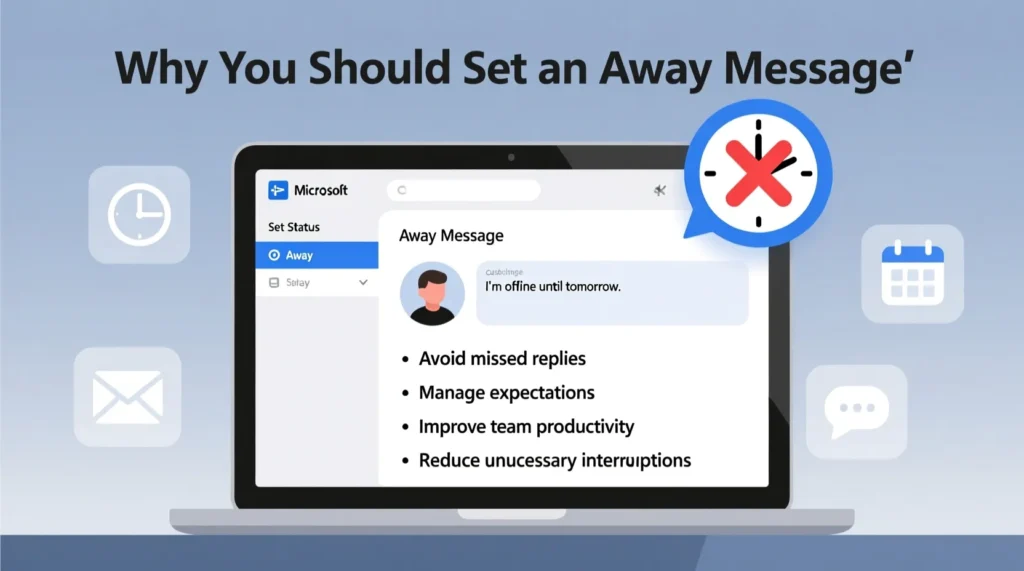
Before you learn how to set an away message in Outlook, it helps to know why it matters. An automatic reply is not just a feature. It is a small act of respect for the people who email you.
It tells people you are not ignoring them
It explains why your reply may be slow
It shares when you expect to be available again
It can guide urgent issues to the right person
It helps reduce follow up emails and pressure
It makes you look organized and thoughtful
It protects your time during rest or deep work
It keeps clients and coworkers informed and calm
It supports healthy work life balance without guilt
It works even when your computer is closed
It gives a simple answer when you cannot
It keeps communication warm even in your absence
It prevents confusion when you are on vacation
It lowers stress when you return to a full inbox
It lets Outlook handle updates while you focus
how to set an away message in outlook on desktop (step by step)
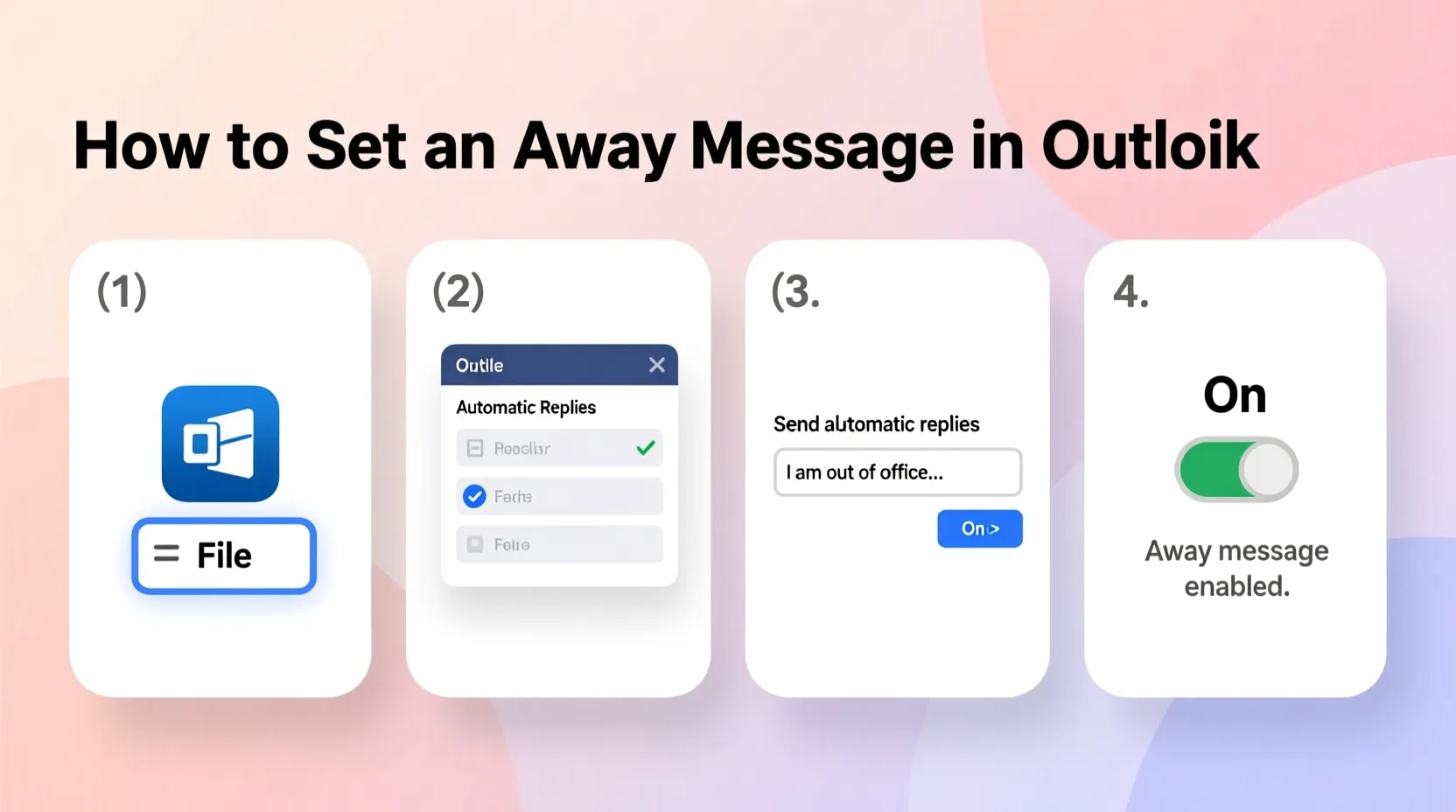
Here is how to set an away message in Outlook if you use the desktop app. These steps are simple and you can follow them even if you are not very technical.
You open Outlook and make sure your email is connected
You click the File tab at the top left of the window
You look for Automatic Replies or Out of Office option
You click Automatic Replies to open the settings box
You choose to send automatic replies for your account
You can turn on Only send during this time range if needed
You set the start date and time for your away period
You set the end date and time when you expect to return
You go to the Inside My Organization tab and type your message
You move to the Outside My Organization tab and type a version for external senders
You keep the message short, clear, and respectful
You click OK to save and start the away message
You send a test email to yourself from another account if possible
You check the auto reply to see if it looks good
You remember to return later and confirm it has turned off
how to set an away message in outlook web
If you use Outlook in your browser, the process is slightly different but still easy. Here is how to set an away message in Outlook web.
You sign in to Outlook in your browser with your email
You click the small gear icon to open Settings
You search for Automatic replies in the settings search bar
You click Automatic replies to open the options
You turn on automatic replies by flipping the toggle
You choose Send replies only during a time period if you know your dates
You set the start and end time of your away days
You type your away message in the text area that appears
You decide if you want to send replies to everyone or only contacts
You can choose a different message for external senders if needed
You review the text to be sure it is clear and friendly
You click Save so Outlook web starts sending your replies
You test the auto reply by emailing yourself from another account
You adjust any wording that looks wrong or confusing
You log out, knowing Outlook web handles the replies while you are away
professional away message ideas for Outlook
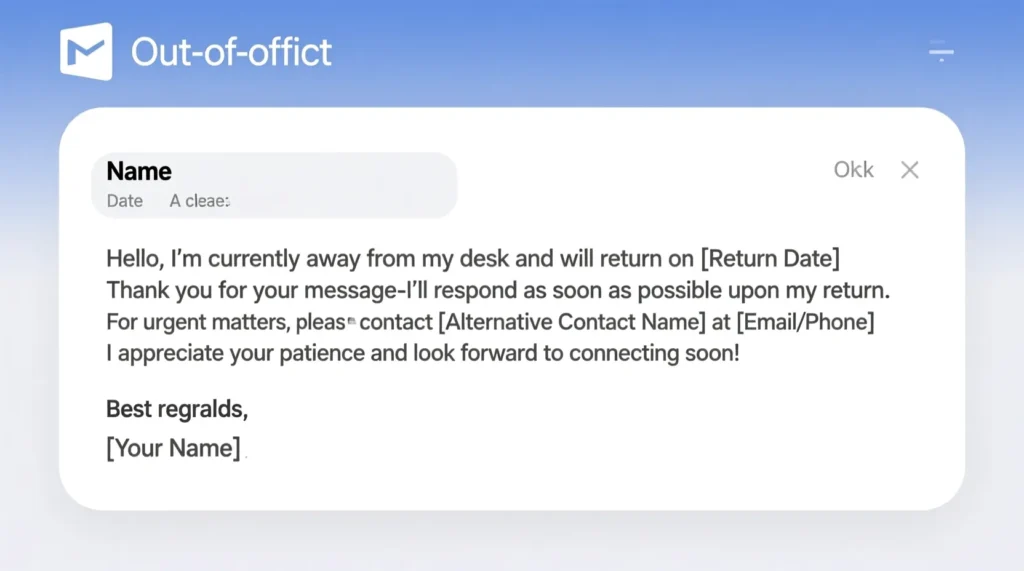
When you look for how to set an away message in Outlook, you also need ideas for what to write. For work, your message should be professional but still warm. Here are points that help shape a good work auto reply.
You mention the date range when you are away
You say you have limited or no access to email
You explain that replies may be delayed until your return
You give the name and email of a backup contact for urgent issues
You keep your language polite and simple
You avoid jokes that might be misunderstood
You skip private personal details that do not help the reader
You thank the sender for their understanding and patience
You use a closing line that feels calm and respectful
You keep the message short enough to read on a phone screen
You make sure your job title and signature are correct
You update the message for holidays, travel, or events
You match the tone to your company style and culture
You verify spelling and grammar before turning it on
You change the text if your return date or plans change
friendly away message ideas for personal Outlook
If you use Outlook for personal email, your away message can sound more relaxed. When you search how to set an away message in Outlook for a personal account, focus on warmth and clarity.
You start with a gentle greeting that feels like you
You say you are away, resting, or taking a small break
You let them know you may not answer quickly
You give a rough idea of when you will check email again
You decide if you want to share another way to reach you
You keep the tone kind, not cold or stiff
You avoid sharing exact travel details for safety
You keep it short so friends can read it fast
You thank them for their message and patience
You avoid heavy or sensitive topics in the auto reply
You may add a light, soft touch of humor if it fits your style
You update the reply as your plans change
You keep the language simple and friendly
You make sure it still feels respectful for anyone who emails you
You enjoy your time away knowing your inbox is not silent
common mistakes when setting an away message in Outlook
Knowing how to set an away message in Outlook also means knowing what to avoid. Small mistakes can cause confusion or make you look less professional. Here are things to watch out for.
You forget to set an end date and the message never stops
You leave an old date in the text from a past trip
You write a long block of text that is hard to read
You share personal details that are not needed
You use a tone that sounds annoyed or unfriendly
You do not include a backup contact when one is needed
You make promises about replies that you cannot keep
You forget to test the message from another account
You use fancy fonts or colors that break in some apps
You copy an old template and forget to change names or dates
You ignore time zone differences for global contacts
You leave spelling or grammar mistakes in the message
You use the same wording for internal and external people when you need different ones
You reveal private client or company information in the auto reply
You forget to check that automatic replies actually turned on
quick tips to keep your Outlook away message clear and kind
These simple tips make your away message stronger and more human. They turn a basic auto reply into a small act of care.
You keep sentences short and easy to read
You use clear words like I will reply after and I have limited access
You always include the dates you are away if possible
You thank the person for reaching out and for their patience
You keep the focus on helping the person who sent the email
You let the message reflect your real voice, calm and respectful
You remember that this message speaks for you when you are not there
FAQs about how to set an away message in Outlook
Can I set different away messages for internal and external people
Yes, Outlook lets you write one message for people in your organization and another for people outside.
Do I need my computer on for Outlook away message to work
If your email uses a server like Exchange or Microsoft 365, the server handles replies even when your computer is off.
How long should my away message be
Keep it short but complete, usually a few clear lines with your dates, delay, and any backup contact.
Should I include my phone number in the away message
Only if you are comfortable receiving calls. Many people prefer sharing a backup email or colleague instead.
Can I change my away message while I am already away
Yes, you can sign in to Outlook desktop or web and update the wording or dates at any time.
conclusion
Learning how to set an away message in Outlook is not just about clicking the right menu. It is about caring for the people who email you while also caring for your own time and energy. A clear, kind auto reply turns silence into information and stress into calm.
By using Outlook automatic replies, keeping your message short and honest, and avoiding simple mistakes, you let your inbox work for you instead of against you. When you step away, your away message keeps things moving, so you can return with less worry and more focus.

I am Michael, a passionate writer at msseage.com, sharing easy and useful content about texting, messaging, and online communication.