
Have you ever wanted to send a message later — maybe a birthday wish at midnight or a gentle morning reminder — without having to stay awake or remember the exact time? The good news is, your iPhone can do that for you.
Learning how to send a timed message on iPhone makes life easier, especially when you want to send something meaningful at the perfect moment.
Whether you want to schedule a simple text, an iMessage, or even an automation that sends messages on your behalf, Apple gives you tools to make it happen. Here’s how you can set your messages to send automatically at the time you choose — so you never forget an important text again.
💬 What Is a Timed Message
A timed message is a text you schedule to send later.
It helps you stay organized and thoughtful.
You can use it for birthdays, meetings, or gentle reminders.
The message goes out automatically at your chosen time.
It ensures you never forget special moments.
It’s available through the Shortcuts app on iPhone.
You can customize who receives it and when.
It’s like your digital assistant for texting.
Once set, it works even if you’re busy or asleep.
It’s perfect for people who love planning ahead.
📱 How to Send a Timed Message Using Shortcuts
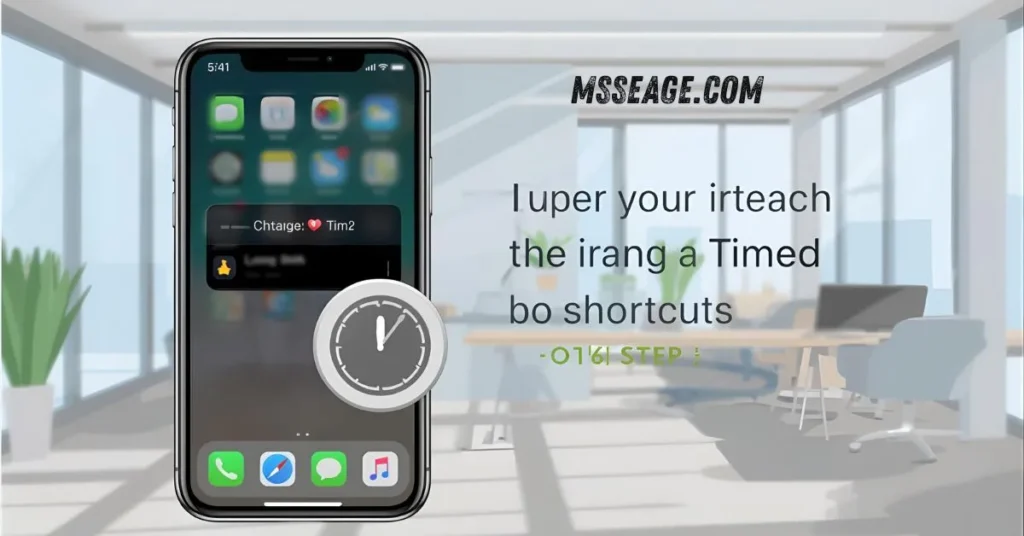
Open the Shortcuts app on your iPhone.
Tap Automation at the bottom of the screen.
Choose Create Personal Automation.
Select Time of Day and set the time you want the message to send.
Tap Add Action and choose Send Message.
Type your message and select the recipient.
Tap Done to save the automation.
At the chosen time, your iPhone will send it automatically.
You can edit or turn off automations anytime.
It’s a smart, built-in way to schedule texts easily.
💬 How to Schedule a Message with Reminders
If you don’t want to use automations, Reminders is another option.
Open the Reminders app and create a new reminder.
Write your message inside the note.
Set the time and date for your reminder.
When the alert pops up, copy and send your message manually.
It’s not fully automatic but works as a personal prompt.
Perfect if you prefer manual control.
You can even set repeat reminders for recurring messages.
It’s a simple workaround without extra setup.
Great for thoughtful planners who like staying on schedule.
💬 Using Third-Party Apps to Schedule Messages
Some apps make scheduling even easier.
You can try apps like Scheduled, Moxy Messenger, or AutoSender.
They allow full control over time, date, and delivery.
You can write, preview, and even repeat messages.
These apps often send via notifications or automation.
They work well for business or personal use.
Some require small in-app purchases for full features.
Always review permissions before use.
They can handle iMessage, SMS, and WhatsApp scheduling.
It’s a great option if you message frequently.
💬 Scheduling iMessages vs Text Messages
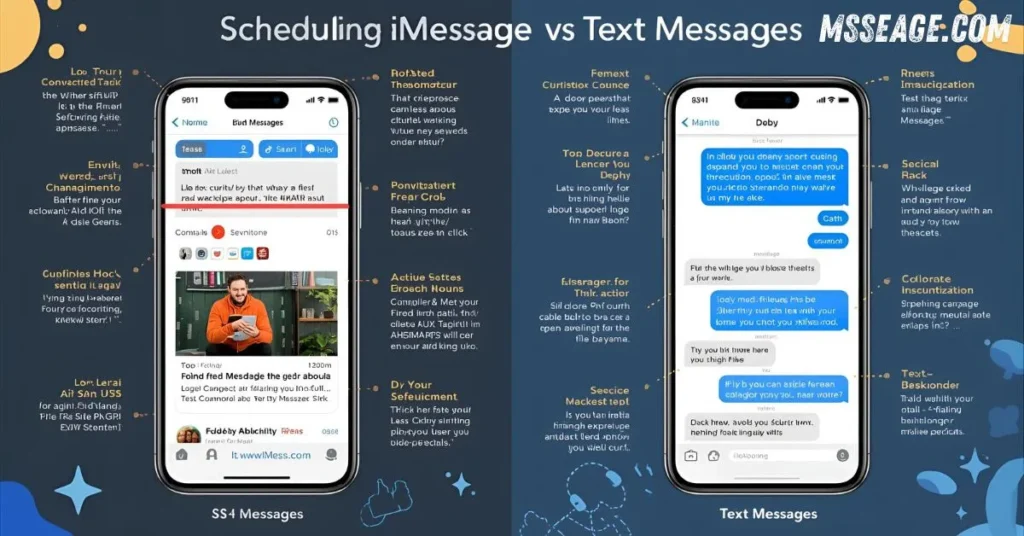
iMessages (blue bubbles) and SMS (green bubbles) send differently.
iMessages use Wi-Fi or mobile data.
Text messages go through your carrier’s network.
When scheduling, automation handles both seamlessly.
The process is the same through Shortcuts.
Your phone decides how to send it based on the recipient.
Blue for iPhone users, green for non-iPhone users.
Both can be scheduled successfully.
It’s simple, smart, and automatic once set.
You don’t need to worry about the difference.
💬 Best Times to Use Timed Messages
Send birthday wishes right at midnight.
Remind someone about an early meeting.
Send loving good morning messages.
Set follow-ups for business or clients.
Remind yourself of important tasks.
Send positive notes to loved ones while you’re busy.
Keep your communication thoughtful and timely.
It’s perfect for remembering important days.
You can even automate holiday greetings.
Timed messages make every text feel intentional.
💬 How to Edit or Delete a Timed Message
Open your Shortcuts app and go to Automations.
Find the scheduled message you want to change.
Tap it to open details.
Edit the time, recipient, or text easily.
You can also disable or delete it completely.
If your plans change, update it anytime.
It’s flexible and user-friendly.
No technical steps are needed.
Everything updates in seconds.
Apple makes managing automations very simple.
💬 Tips for Using Timed Messages Smartly
Double-check the date and time zone.
Keep your message tone kind and clear.
Avoid sending sensitive messages automatically.
Preview before saving your automation.
Turn off “Ask Before Running” for hands-free delivery.
Don’t schedule too many messages at once.
Test one before relying on it fully.
Use it for thoughtful or time-specific communication.
Keep reminders for your most important moments.
A well-timed message shows care and attention.
💭 FAQs About Timed Messages on iPhone
Can you schedule a text directly in the Messages app?
Not yet. You can only do it through the Shortcuts app.
Does a timed message send automatically?
Yes, if you disable “Ask Before Running” in your automation settings.
Will it work if my iPhone is turned off?
No, your iPhone needs to be on and connected at the scheduled time.
Can I schedule messages to multiple contacts at once?
Yes, just add more recipients when creating your automation.
Is there an app that can do this easily?
Yes, third-party apps like Scheduled or AutoSender are great for this.
💬 Conclusion
Sending timed messages on iPhone is a small but powerful way to stay connected with thoughtfulness and precision.
Whether you’re sending midnight birthday wishes, gentle reminders, or business follow-ups, the Shortcuts app gives you control and convenience.
A little setup today can make every future message right on time. With automation and care, your words can always arrive exactly when they matter most.

My name is Emma, a writer at msseage.com, sharing clear and helpful content about messages and digital communication.