
If your iPhone says iMessage is turned off or messages are sending as green bubbles instead of blue — don’t worry. You’re not alone.
Many users face the same issue and wonder how to enable iMessage quickly and correctly. This guide will walk you through every simple step to turn iMessage on, fix common problems, and get your blue messages back instantly.
💬 What Is iMessage
iMessage is Apple’s built-in messaging service.
It lets you send texts using Wi-Fi or data.
Messages appear in blue instead of green.
You can share photos, stickers, videos, and effects.
It works between iPhone, iPad, and Mac users.
Unlike SMS, it doesn’t need a mobile carrier.
Messages are encrypted for full privacy.
It syncs across all your Apple devices.
You can also use it for FaceTime links and reactions.
It’s what makes Apple messaging feel seamless and personal.
💬 How to Enable iMessage on iPhone
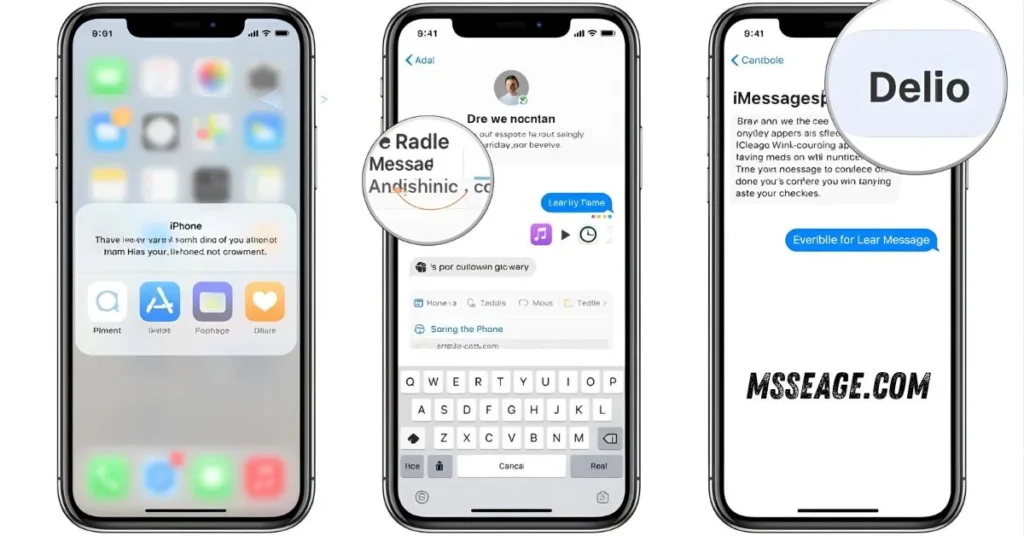
Open the Settings app on your iPhone.
Scroll down and tap Messages.
Find the iMessage switch at the top.
Toggle it ON so it turns green.
Your iPhone will activate it automatically.
Wait for a few seconds for verification.
Make sure you have Wi-Fi or data on.
If prompted, sign in with your Apple ID.
You’ll see “iMessage Activated” when it’s done.
You can now send blue bubble messages again.
💬 Activate iMessage with Your Apple ID
Go to Settings > Messages > Send & Receive.
Tap your Apple ID at the top.
Sign in using your Apple account details.
Make sure both your phone number and email are checked.
This ensures people can reach you through both.
If not, tap “Use your Apple ID for iMessage.”
This connects iMessage across all devices.
You’ll see “Waiting for activation” briefly.
After a few moments, it turns active.
You’re now fully connected through your Apple ID.
💬 Check Your Internet Connection
iMessage needs Wi-Fi or mobile data to work.
Go to Settings > Wi-Fi and connect to a network.
If using data, make sure Mobile Data is turned on.
Without a connection, activation may fail.
Try turning Airplane Mode on and off once.
If your signal is weak, switch to another network.
Restart your iPhone if it still doesn’t activate.
Sometimes a fresh reconnect helps.
Avoid using VPNs during setup.
A strong connection guarantees smooth activation.
💬 Fix “Waiting for Activation” Error
This message is common and fixable.
Check your time zone under Settings > General > Date & Time.
Enable “Set Automatically.”
Sign out of Apple ID, then sign back in.
Restart your iPhone and open Messages again.
Wait a few minutes before retrying.
Contact your carrier if it persists.
They may need to refresh SMS settings.
Turn off iMessage, wait 10 seconds, and turn it back on.
Most users see success after this quick reset.
💬 Enable iMessage on Mac or iPad
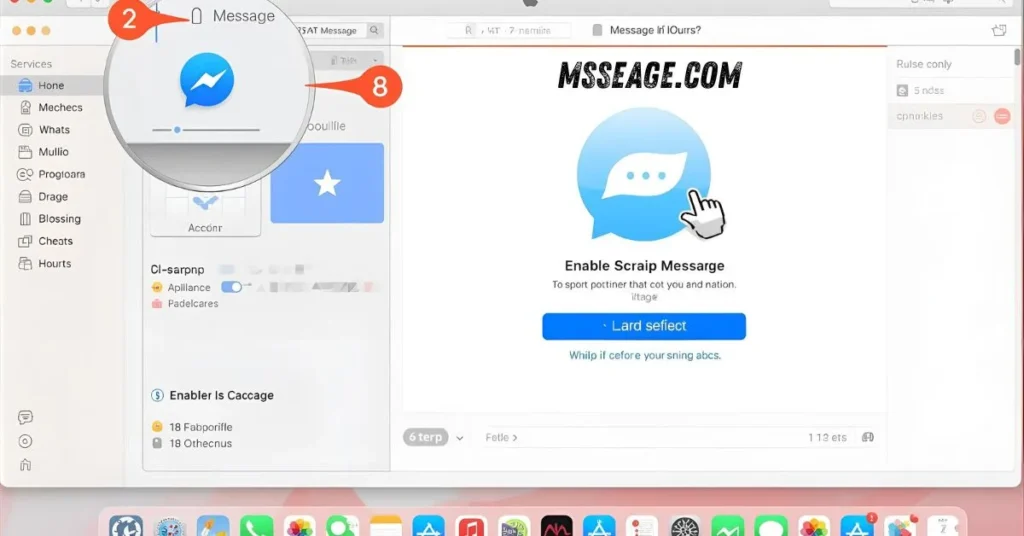
Open the Messages app on your Mac or iPad.
Sign in with the same Apple ID as your iPhone.
Go to Preferences > iMessage and check “Enable this account.”
This syncs your messages across all devices.
You can start a conversation anywhere, anytime.
Your contacts and chats stay in sync.
Make sure your Apple ID email is verified.
Turn on “Text Message Forwarding” under iPhone Settings.
Select which devices can send and receive.
This makes iMessage universal for your Apple ecosystem.
💬 Turn On Send & Receive Options
Go to Settings > Messages > Send & Receive.
Here you’ll find “You can be reached by iMessage at.”
Check your phone number and email.
If one is unchecked, toggle it on.
This controls where messages are delivered.
You can add multiple Apple IDs if needed.
Choose your preferred address for new conversations.
This helps others find you easily.
Keep both options active for reliability.
It ensures no iMessage gets lost or missed.
💬 Update iOS to Fix Activation Issues
Go to Settings > General > Software Update.
Tap Download and Install if an update is available.
Apple often fixes iMessage issues in new updates.
Make sure your iPhone is charged and on Wi-Fi.
After updating, restart and re-enable iMessage.
Old iOS versions sometimes cause verification delays.
Keeping your phone current ensures smooth messaging.
It also adds new features like unsend and edit message.
Always back up before updating for safety.
Stay up to date for the best iMessage experience.
💬 Contact Apple Support if iMessage Won’t Enable
If nothing works, visit Apple Support online.
You can chat or schedule a callback.
Explain your activation issue in detail.
They’ll guide you through carrier or ID fixes.
You may be asked to sign out of iCloud temporarily.
Apple’s support tools can test your device remotely.
They may find an error your iPhone missed.
It’s a quick, safe, and effective option.
Most users get iMessage running within minutes.
Support ensures your settings are perfectly aligned.
💭 FAQs About Enabling iMessage
Why is my iMessage green instead of blue?
Green means your message was sent as SMS, not iMessage.
Do I need Wi-Fi to enable iMessage?
Yes, iMessage needs Wi-Fi or mobile data to activate.
Why does it say “Waiting for activation”?
It’s verifying your Apple ID and carrier connection.
Can I enable iMessage without Apple ID?
No, an Apple ID is required to use iMessage.
Does enabling iMessage cost money?
No, it’s free — but initial activation may send a carrier SMS.
💬 Conclusion
Enabling iMessage turns your regular texts into something richer and more connected. It lets you share photos, emotions, and real conversations with blue-bubble clarity.
Whether you’re setting it up for the first time or fixing activation errors, the steps are simple and quick.
Once enabled, your iPhone transforms into a smarter communication tool — letting you express more, connect deeper, and chat freely anywhere in the world.

My name is Emma, a writer at msseage.com, sharing clear and helpful content about messages and digital communication.