
It is frustrating when your phone stays silent and you miss important messages. If you keep asking yourself why am I not getting message notifications, there are usually simple reasons behind it.
This guide explains the most common causes, from settings and modes to app and battery issues, and shows easy ways to fix them so you never miss another text.
💬 Notifications Are Turned Off For Your Messages App
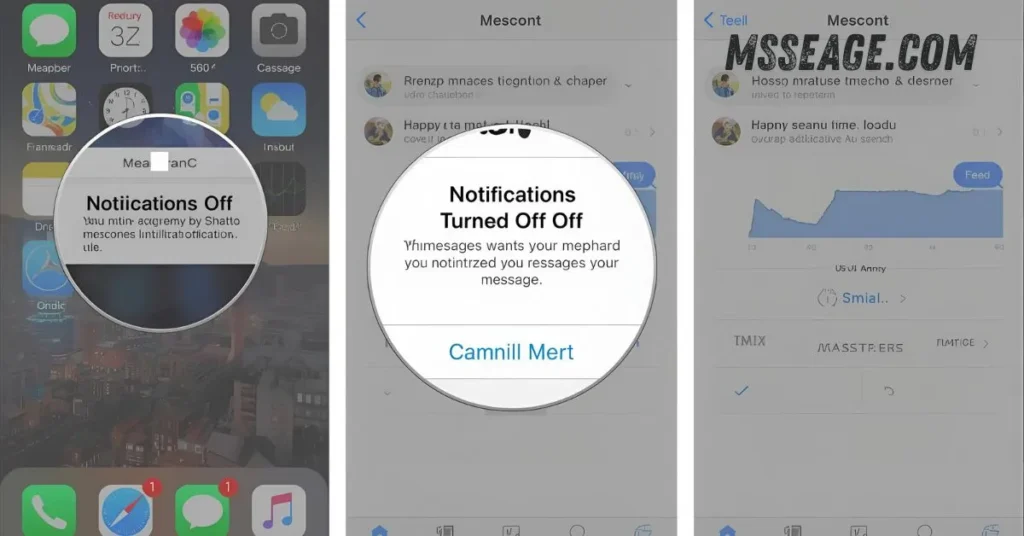
Sometimes notifications are disabled directly for the messaging app.
Open Settings and go to Notifications.
Find your main messages app in the list.
Make sure notifications are allowed for that app.
Turn on banners, lock screen alerts, and status bar icons.
Check if there are categories like incoming messages or group messages.
Enable them so new texts can trigger alerts again.
Send yourself a test text or ask someone to message you.
If an alert appears, you found the main problem.
A single switch can silence every message without you realizing it.
💬 Do Not Disturb Or Focus Mode Is On
Do Not Disturb can stop notifications even when everything else is correct.
Look for an icon that shows a minus, moon, or focus symbol.
Open Settings and go to Sound, Focus, or Do Not Disturb.
Turn off Do Not Disturb if it is enabled.
If you use scheduled quiet times, review those hours.
Check if messages are allowed as exceptions in that mode.
You can add certain apps or contacts as allowed during DND.
If you only want some quiet, adjust rules instead of turning off all alerts.
Once DND is off or properly set, notifications should start showing again.
This mode is helpful at night, but easy to forget later.
💬 Individual Chats Or Groups Are Muted
You might not get notifications from specific people or group chats.
Open your messaging app and look at the list of conversations.
Muted chats often show a small crossed-out bell or icon.
Tap on the conversation that is too quiet.
Open its settings or details inside the chat.
Turn notifications back on or unmute the thread.
Some apps let you mute for an hour, a day, or forever.
If you muted during a busy day, you may have forgotten about it.
Unmuting that one chat can bring back all alerts from it.
This is one of the most common reasons people miss messages.
💬 Volume, Sound, And Vibration Settings Are Too Low
Notifications may be working, but you simply do not hear them.
Go to Settings and open Sound or Volume.
Check the volume level for notifications.
Raise it to a clear, audible level.
Make sure your phone is not stuck on silent mode.
Pick a message tone that is sharp and easy to notice.
Turn on vibration if you often keep your phone in your pocket.
If you use a smartwatch or earbuds, alerts may go there instead.
Test by sending yourself a message and listening closely.
Small sound changes can make a big difference in noticing alerts.
💬 Lock Screen And Pop-Up Settings Are Disabled
Sometimes notifications arrive, but they do not show on the lock screen.
Go to Settings and open Notifications or Lock screen settings.
Look for options like show notifications on lock screen.
Enable them so message alerts appear even when the screen is off.
Check if previews or content are hidden, if that matters to you.
Turn on pop-up or heads-up notifications if your phone supports them.
These small banners help you see incoming texts while using other apps.
Make sure badges on app icons are enabled if you like that style.
When lock screen and pop-ups are disabled, alerts are easy to miss.
Turning them back on makes new messages much more visible.
💬 Battery Saver Or Optimization Is Blocking Alerts
Battery saver modes can reduce background activity for apps.
Your phone might delay message notifications to save power.
Open Settings and go to Battery or Power.
Check if battery saver is turned on.
Turn it off temporarily and see if notifications return.
Find your messages app in battery optimization settings.
Set it to not optimized or allow it to run in the background.
If the app cannot run freely, it may not show alerts on time.
Once you relax the battery rules for that app, alerts come more consistently.
Saving power is good, but it should not stop you from seeing important texts.
💬 App Updates Or Glitches
Sometimes notifications fail due to app glitches.
Check if your messaging app is updated.
Open Play Store and update Android Messages or your SMS app.
Restart your phone after updates to refresh app settings.
Clear the cache of your messaging app if problems persist.
Test by sending yourself a message to see if alerts appear.
App glitches can silently prevent notifications.
Even small updates or settings resets often fix the issue.
Keeping apps updated is a simple preventative measure.
Regular maintenance ensures alerts always reach you.
💬 Software Updates And Phone Restart
Older software versions can create notification issues.
Check Settings > System > Software Update.
Install any available updates.
Restart your phone afterward.
Sometimes background bugs prevent alerts from showing.
Restarting clears memory and reinitializes services.
Even a simple restart can fix notification problems instantly.
If updates are pending for a long time, alerts may be inconsistent.
Keeping your system current reduces hidden bugs.
Always test notifications after software updates.
💭 FAQs About Missing Message Notifications
Why am I not getting message notifications
It could be settings, mute, DND, battery saver, app glitches, or software issues.
Can a specific chat cause missing notifications
Yes, muted conversations or group chats often stop alerts.
Does battery saver affect message notifications
Yes, background restrictions can delay or block notifications.
Will restarting my phone help
Often, yes. Restarting refreshes app processes and system services.
Are system updates important for notifications
Absolutely. Updates fix bugs that might stop alerts from working.
💬 Conclusion
Missing message notifications is frustrating, but usually fixable. Check your app settings, DND, mute options, volume, lock screen, battery saver, and app updates first.
Restarting and keeping software current also helps. Following these steps ensures you never miss important messages again.

I am James, a content writer at msseage.com, creating helpful articles about messages, communication, and modern digital trends.